How to Add a Suffix to Cells in Google Sheets
Adding a suffix means appending text after existing cell values. Common examples: adding ".com" to domain names, "kg" to weights, or " - Completed" to status labels. Here are two approaches.
Method 1: Using formulas
Create a helper column
Add an empty column next to your data for the suffixed results.
Write the suffix formula
Use the & operator to append text after the cell reference. For example, =A2&".com" adds ".com" after the value in A2.
=A2&".com" or =CONCATENATE(A2, " kg")
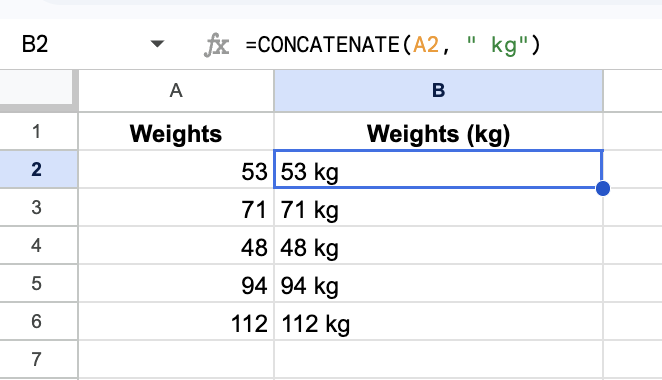
Copy down and replace originals
Drag the formula down, copy the results, paste as Values Only over the original column, then delete the helper column.
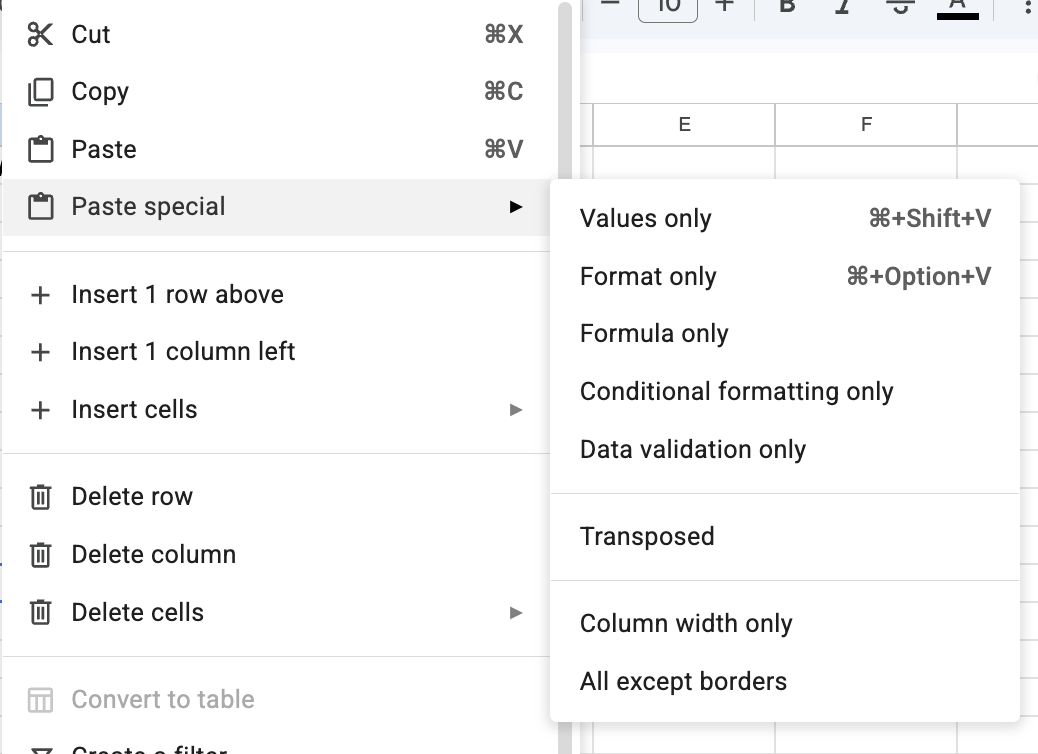
Works well for one-off tasks. For repeated suffix operations across large datasets, the manual steps become a bottleneck.
Method 2: Using Text Tools (faster)
Text Tools appends the suffix directly to your cell values.
Select the cells where you want to add the suffix.
Open Text Tools from the Extensions menu. Type your suffix and select "After each cell."
Check the preview to make sure it looks right, then click Apply.
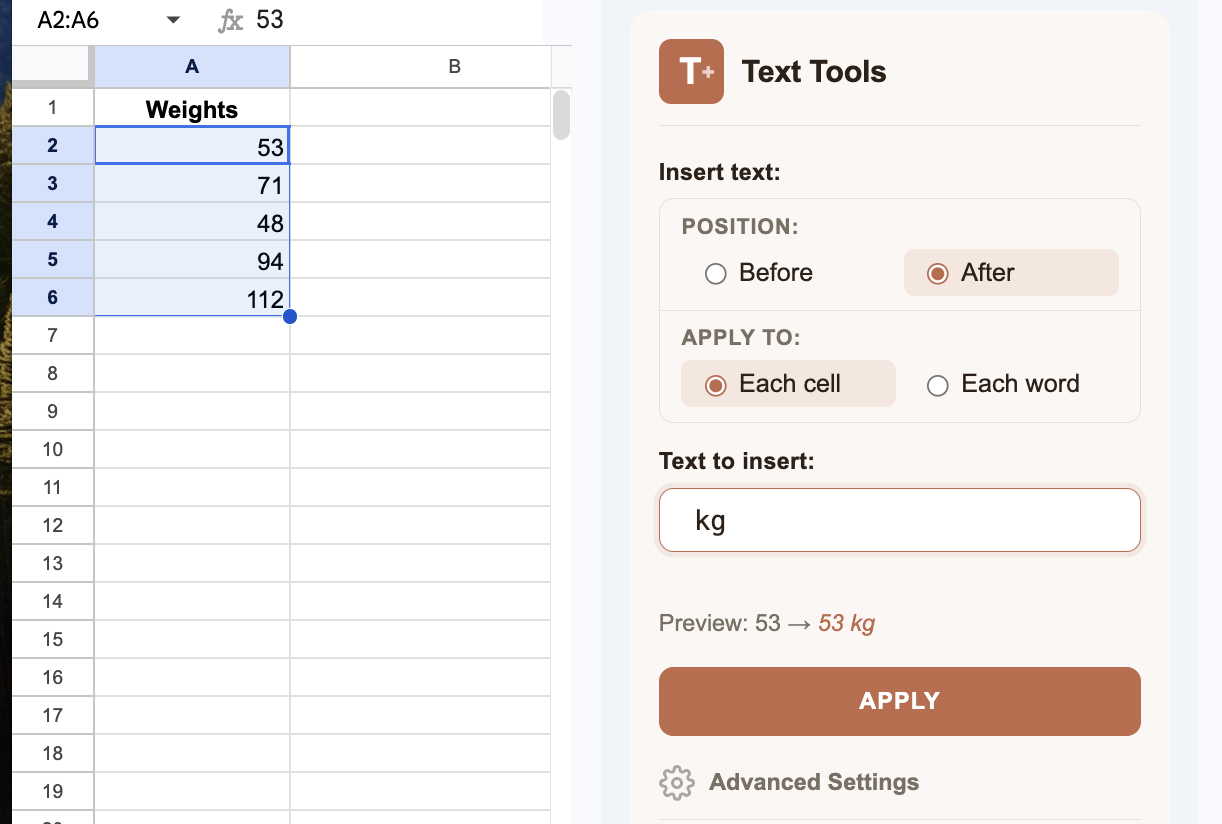
Tip: Want to wrap cells in characters like quotes or brackets? Run the operation twice: first add the opening character after each cell using this suffix method, then switch to "Before each cell" to add the closing character as a prefix.
Frequently asked questions
Can I add a suffix to cells that already have formulas?
Standard formulas work with displayed values, not the underlying formula. Text Tools Pro can edit the formula text directly if needed.
How do I add ".com" to a list of domain names?
Select your domain name cells, open Text Tools, type ".com", choose "After each cell", and apply. Or use the formula =A2&".com" in a helper column.
How do I wrap cells in quotes or brackets?
Run Text Tools twice: add the suffix first (the closing character after each cell), then add the prefix (the opening character before each cell). Two quick operations and every cell is wrapped.