How to Add a Prefix to Cells in Google Sheets
Adding a prefix means inserting text before existing cell values. Common examples: adding "https://" to domain names, "+1" to phone numbers, or "SKU-" to product codes. Here are two ways to do it in Google Sheets.
Method 1: Using formulas
Create a helper column
Add a new column next to your data where the prefixed values will go.
Write the prefix formula
Use the & operator to place your prefix text before the cell reference. For example, ="https://"&A2 adds "https://" before whatever is in cell A2.
="https://"&A2 or =CONCATENATE("+1 ", A2)
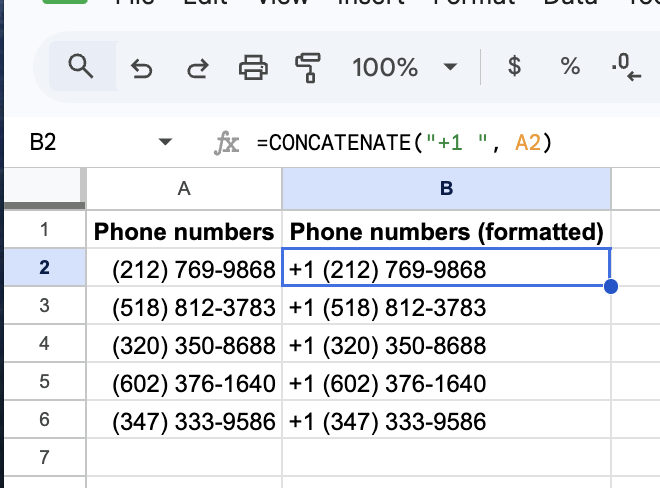
Copy down and replace originals
Drag the formula down for all rows. Copy the results, paste over the original column as Values Only, then delete the helper column.
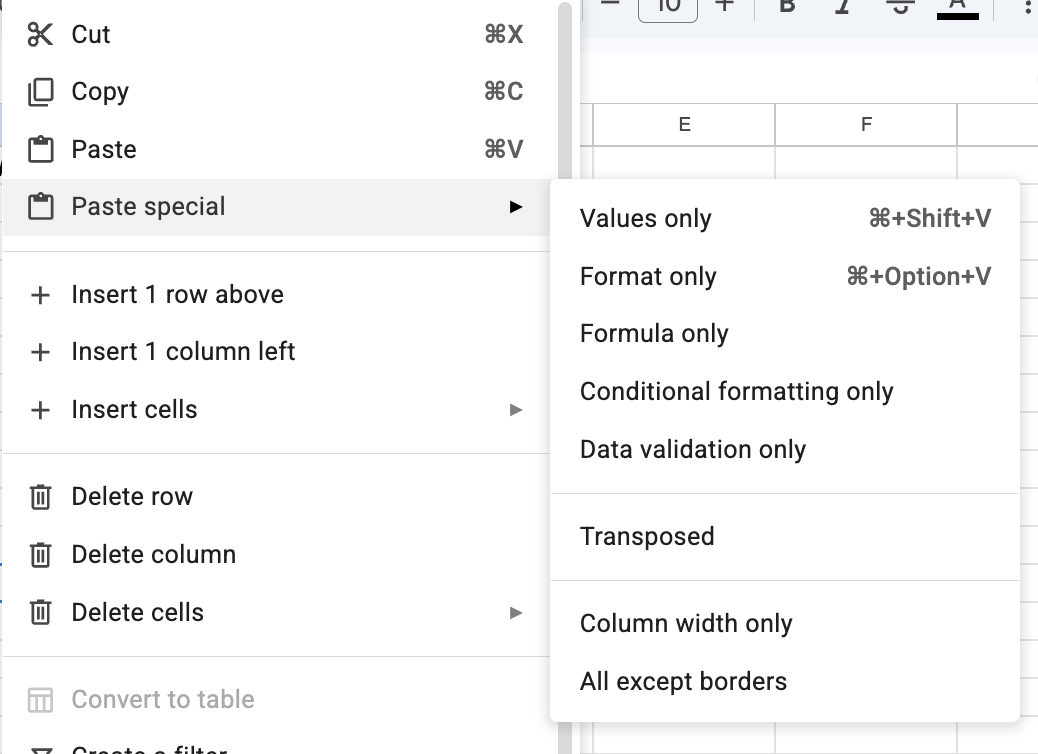
For a handful of cells this is fine. But if you regularly need to prefix hundreds of cells, the helper-column workflow adds up.
Method 2: Using Text Tools (faster)
Text Tools adds the prefix directly to your cells with no helper columns needed.
Select the range of cells you want to prefix.
Open Text Tools from the Extensions menu. Type your prefix text and select "Before each cell."
Preview the result, then click Apply. Every selected cell gets the prefix instantly.
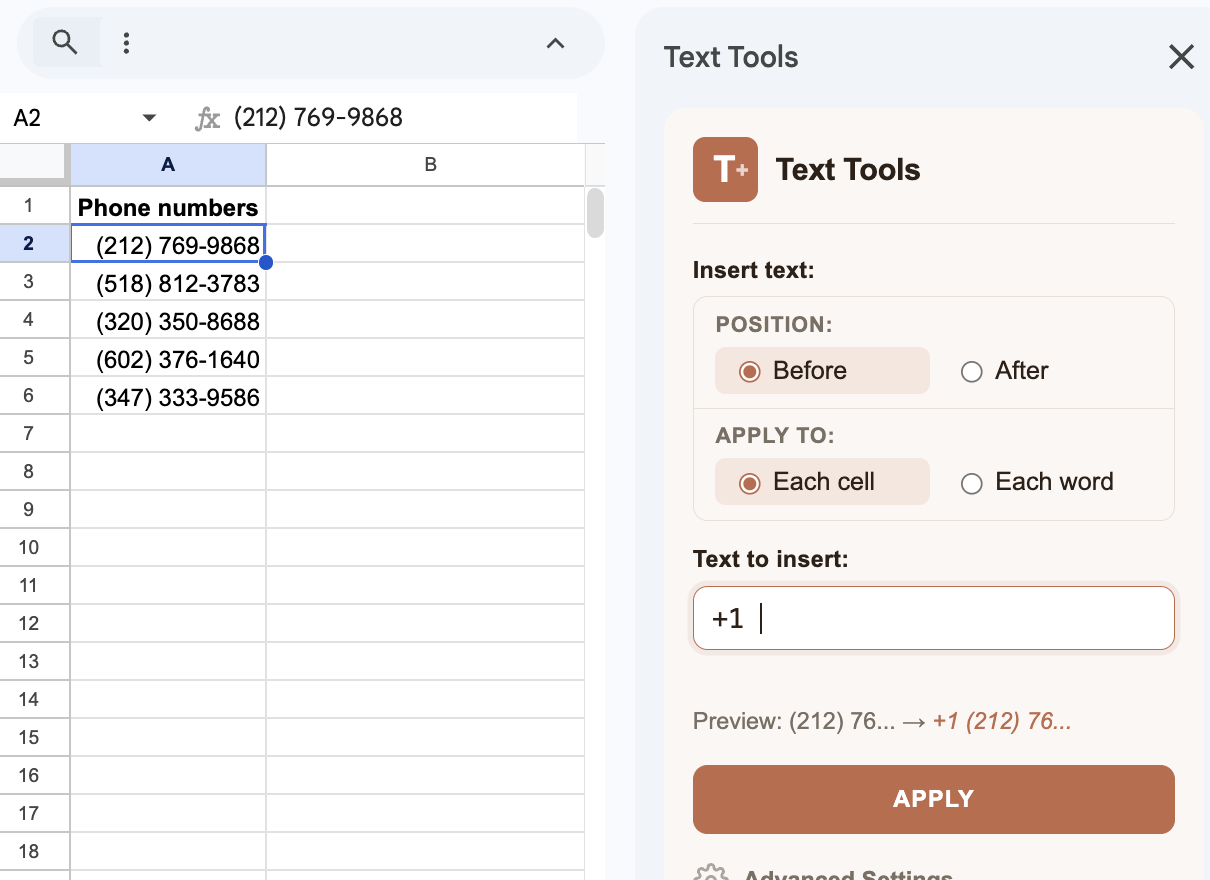
Tip: Need to add text both before and after your cells? Run the operation twice: once with "Before each cell" for the prefix, then again with "After each cell" for the suffix. This is how you wrap cells in quotes, brackets, or any pair of characters.
Frequently asked questions
Can I add a prefix to an entire column in Google Sheets?
Yes. Select the entire column (or the range within it), then use either a CONCATENATE formula dragged down or Text Tools to apply the prefix to all cells at once.
How do I add a country code prefix to phone numbers?
Use ="+1 "&A2 as a formula (replacing +1 with your country code), or select the phone number cells in Text Tools and insert "+1 " before each cell.
How do I wrap cells in quotes or brackets?
Run Text Tools twice: first insert the opening character (like a quote or bracket) before each cell, then insert the closing character after each cell. Two quick operations and every cell is wrapped.